
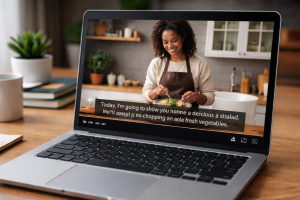
 Ever been on a call where the audio cuts out, someone’s mic is muffled, or the room around you is just too loud? Windows has a built-in tool that helps with all of that, and most people do not even know it exists.
It’s called Live Captions.
Live Captions automatically shows on-screen text for any audio playing on your PC. That includes video meetings, training videos, webinars, podcasts, and even audio picked up by your microphone.
No extra software. No browser extensions. It’s built right into Windows. To turn it on, press: Win + Ctrl + L
The first time you use it, Windows downloads a small language file. After that, captions appear instantly!
This tool is not just for accessibility. It is a solid productivity helper:
- Follow meetings when audio quality is poor
- Keep up with videos in a shared or noisy space
- Reduce confusion when speakers talk fast or have strong accents
- Stay focused during training sessions and webinars
- Helpful for quick note-taking without replaying audio
The audio stays on your device. It is not sent off to the cloud, which is a nice bonus from a security standpoint.
Live Captions can be adjusted to fit how you work:
- Move the caption box anywhere on your screen
- Change text size and style for readability
- Keep captions pinned above or below your content
Live Captions is one of those small features that quietly makes work easier. It takes seconds to turn on and can save you from missed details. Try it out with Win + Ctrl + L and see how often you end up leaving it on.