
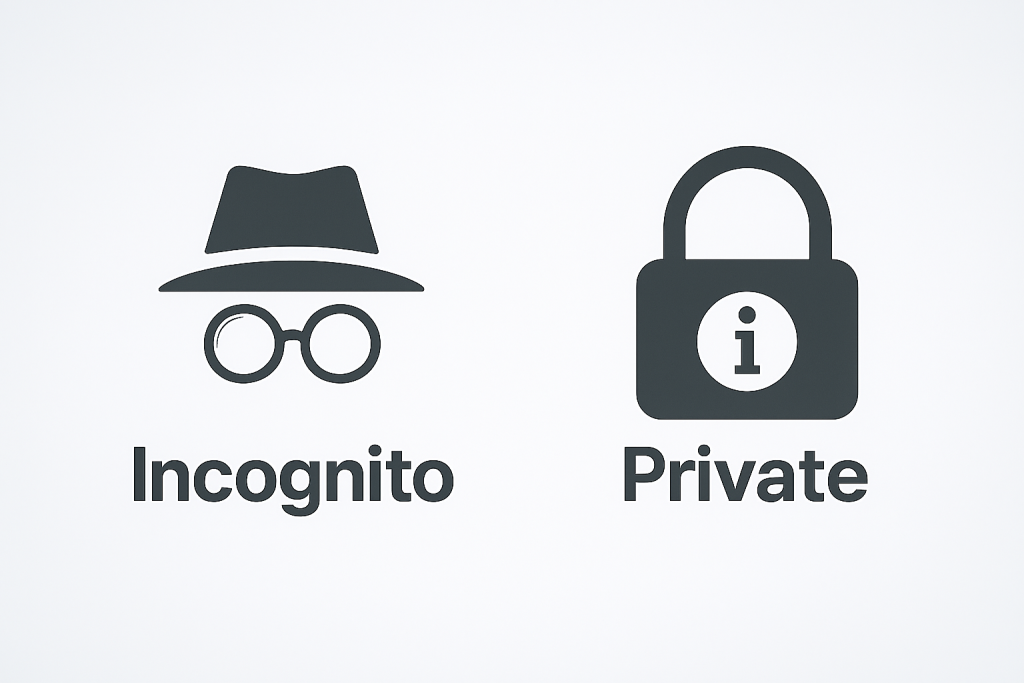
 Most modern browsers have a Private or Incognito mode, sometimes called InPrivate or Private Browsing. In Private or Incognito mode might be another one when you need to visit a website without it knowing your history. Very useful for troubleshooting, also useful when you prefer advertisers not connect the dots. It will not bypass your IT department monitoring, so don’t try to use it for that, but it can help if you can’t get signed into a website or you are getting funny error messages.
In normal browsing, websites store small bits of information called cookies. These help remember logins, preferences, and settings. Over time, cookies can build up and cause small but frustrating issues like login loops, outdated pages, missing content, or strange errors. Sometimes older cookies do not match updated websites and cause problems.
It basically starts you with a clean slate. It doesn’t use any of your existing cookies, and anything saved during that session is deleted when you close it. This makes Private mode a quick way to test if cookies are causing issues without clearing your entire browser.
Here is how to open it in common browsers. In Chrome, click the three dots and choose New Incognito Window, or press Ctrl Shift N. In Firefox, click the three lines and select New Private Window, or press Ctrl Shift P. In Microsoft Edge, click the three dots and choose New InPrivate Window, or press Ctrl Shift N. In Internet Explorer, click the gear icon, go to Safety, and select InPrivate Browsing.
In short, Private mode is a quick and easy way to troubleshoot common website problems and reduce some tracking, while keeping your main browser session unchanged. If things aren’t working the way they should, Wingman IT Services can help. Reach out today and let’s get it fixed quickly.