
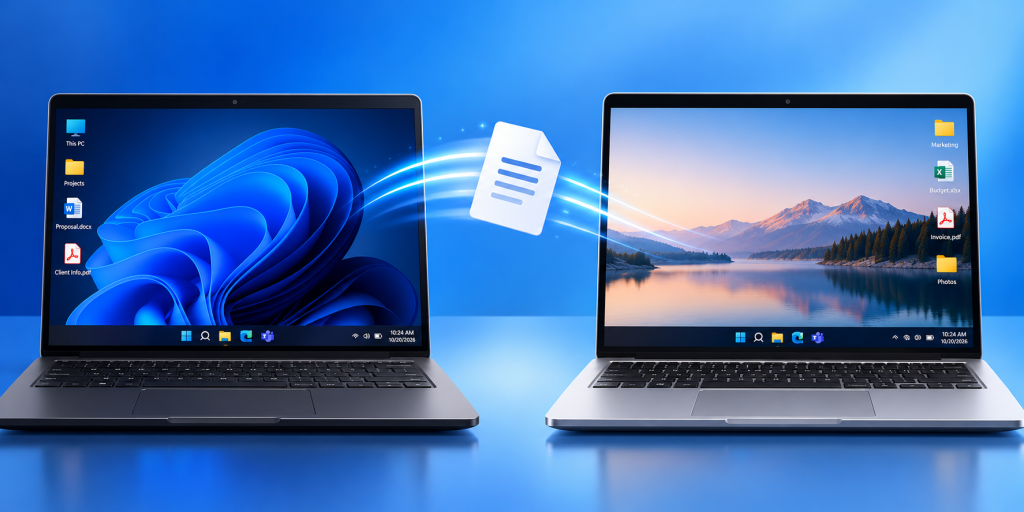
 Need to send a file from one Windows computer to another? Most people email it to themselves, upload it to the cloud, or hunt down a flash drive. Many Windows 11 PCs include a built-in feature called Nearby Sharing that makes the process much easier. Think of it as Windows’ version of AirDrop, allowing you to send files directly to another nearby Windows computer.
To turn it on:
- Open Settings
- Go to System > Nearby Sharing
- Turn Nearby Sharing on
- Choose My devices only or Everyone nearby
To send a file:
- Right-click the file
- Select Share
- Choose the nearby computer
- The recipient accepts the transfer
Nearby Sharing is especially useful for moving files between a desktop and laptop, sharing documents with a coworker, or sending photos and PDFs without creating another email attachment.
For better security, we recommend using My devices only whenever possible. You’ll still be able to share files between your own computers while limiting visibility to other nearby devices.
Keep in mind that both computers need Bluetooth and Wi-Fi enabled, and some older devices may not support the feature.
It’s one of those hidden Windows features that can save a surprising amount of time and eliminate a few extra steps from your day.
If you’d like help getting more from the technology you already use every day, Wingman IT Services can help. Contact us to learn about practical tools and best practices that can help your business work more efficiently.